New: Live Photo & Video Slideshow for Your Event

Sam Erickson
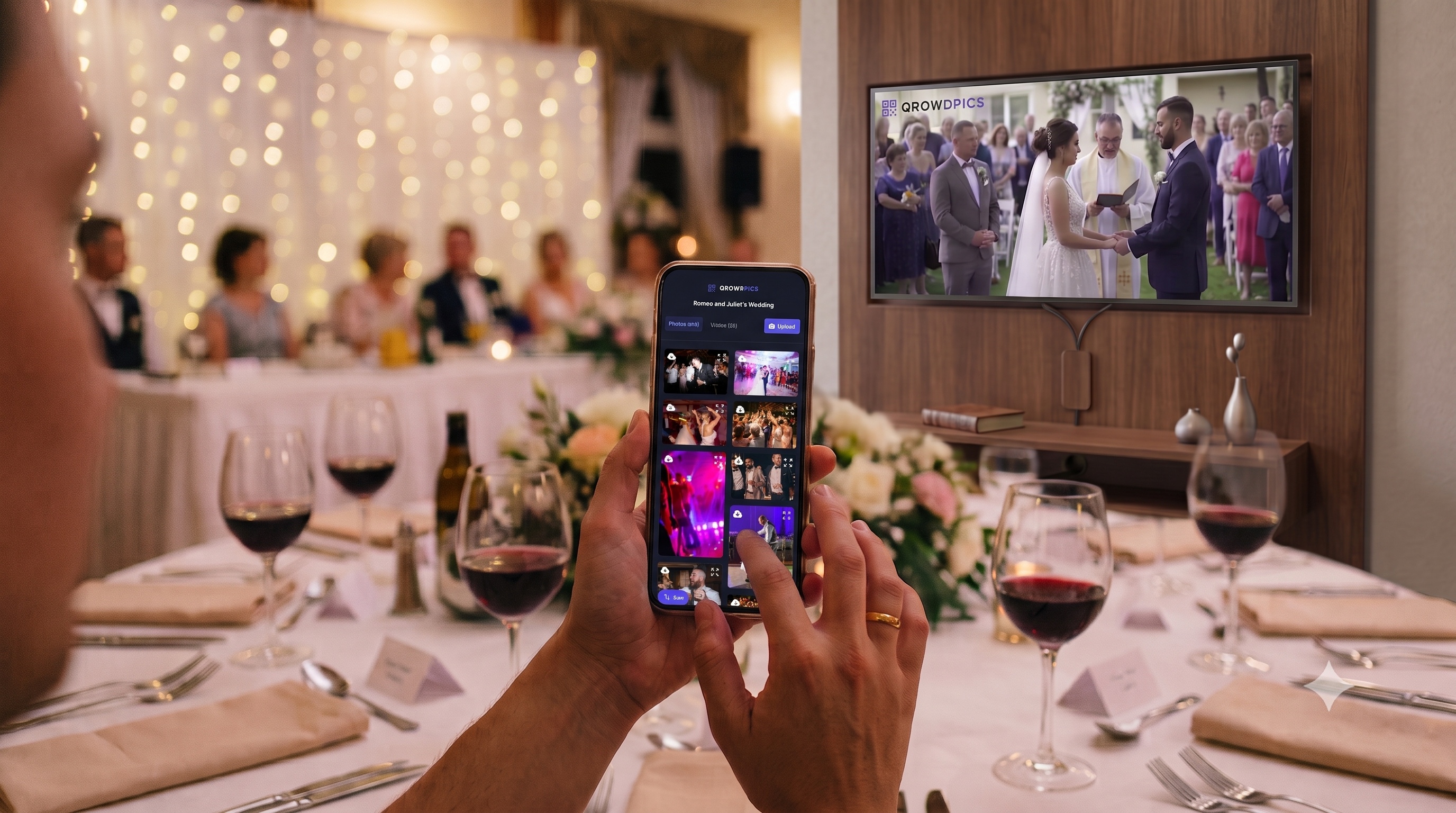
Qrowd Pics guests have always been able to upload photos and videos straight from their phones with a QR code scan, whether it's a wedding, birthday party, baby shower, graduation, or quinceañera. Now those uploads can show up on a screen at the venue while the event is still happening. Qrowd Pics Premium events can launch a full-screen slideshow that plays every approved photo and video in the gallery, updating automatically as new uploads come in.
What it does
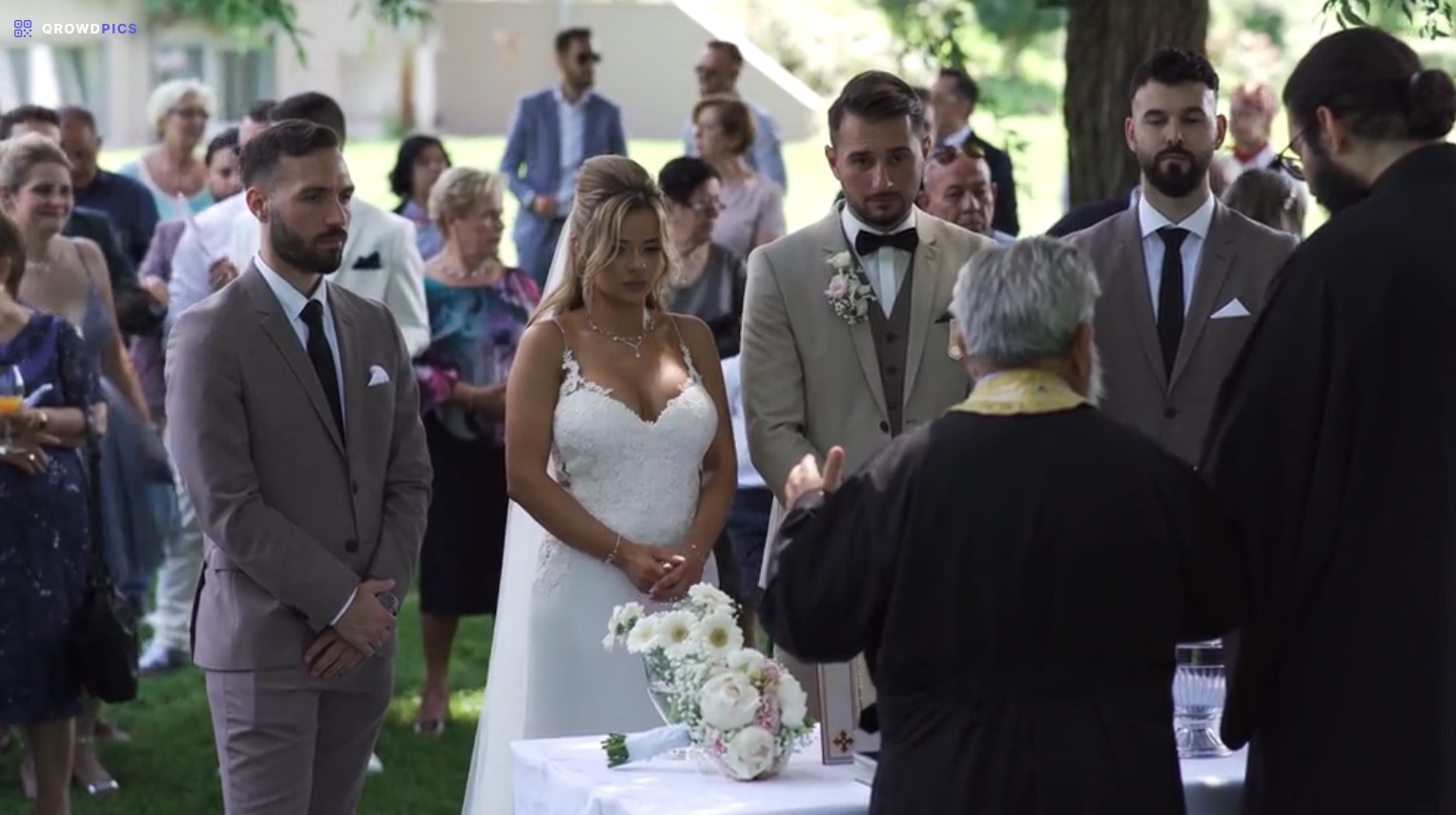
Open the slideshow URL on a spare tablet or laptop, or cast it to a TV or projector, and it becomes a live display of your event gallery. Photos crossfade in with a subtle pan-and-zoom effect and hold for six seconds. Videos play through to the end before advancing to the next item. Everything is sorted chronologically by upload time, so the display always reflects what guests are capturing right now.
The slideshow checks for new uploads every 20 seconds, so a photo taken during the toast can be playing on the screen a few minutes later without anyone touching the device.
Built to run with nobody managing the device
A screen propped up at the venue and left alone for hours has different requirements than a page someone is actively browsing on their own phone, so a few details went into making it work without anyone standing next to it to babysit the device:
- The screen stays awake. Devices are built to dim and lock after a few minutes of no interaction, which would otherwise cut the show short. The slideshow uses the device's wake lock to keep the display on for as long as it runs.
- Videos start muted, then unmute after one tap. Browsers block unattended autoplay with sound, so the first video on the screen starts muted with a tap-to-unmute button. Tap it once and every video after that plays with audio for the rest of the session.
- No dead links, even hours in. Media URLs are refreshed in the background well before they'd expire, so a slideshow that loops for an entire reception keeps playing without a broken image partway through.
- Deletions show up too. If an organizer removes an inappropriate upload from the moderation queue, it's dropped from the rotation on the next refresh instead of continuing to play.
How to launch it
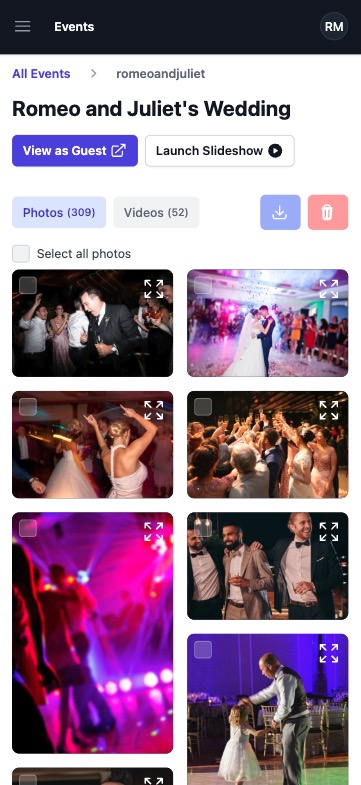
If your event is on the Premium plan, a "Launch Slideshow" link appears in the gallery manager in your console, opening qrowdpics.com/[your-event-url]/slideshow. Open it on whatever screen you want to display, tap the full-screen icon in the top right corner to hide the browser's address bar and toolbar for a clean, presentation-style display, and leave it running.
The slideshow is a Premium feature, alongside upload approval and guest name and message collection. It's included at no extra cost on the Premium plan, which is a one-time fee of $49 per event.
Where to display it
Any device that can open a browser can run it directly, and any screen it can connect to works too. What makes sense depends on the occasion:
- Wedding reception. A laptop or streaming device feeding a TV on a stand near the dance floor or dessert table, or a projector aimed at a blank wall once the lights come down.
- Birthday party. A tablet propped on the gift table or an old laptop connected to the living room TV.
- Baby shower or graduation party. A laptop connected to the TV in the main room where guests are already gathered, so the slideshow is running in the background the whole time.
- Quinceañera. A laptop feeding the DJ booth screen or a projector, alongside the rest of the evening's AV setup.
Wherever it ends up, put the QR code sign somewhere guests will see it near the screen. Watching their own photo appear a couple of minutes after scanning is what gets people to keep uploading through the rest of the event.
Fixing black bars on the TV
The slideshow fills the entire browser window edge to edge, so if black bars show up on the TV, usually on the left and right, the browser isn't cropping anything. It's a mismatch between the resolution or aspect ratio your laptop is sending and how the TV displays it, and it shows up the same way no matter what photo or video happens to be on screen.
Two settings usually fix it:
- Check the TV's picture size setting for that HDMI input. Look for an option called Just Scan, Screen Fit, or 1:1 Pixel Mapping, usually under the Picture or Aspect Ratio menu. Many TVs default to a mode that shrinks the incoming image and pads it with black, and switching to Full or Native mode fixes it right away.
- Check your laptop's display settings. Make sure the resolution matches the TV's native resolution, usually 1920x1080. On Windows, right-click the desktop, choose Display settings, and check the resolution there. On a Mac, go to System Settings, then Displays, and look through the available resolution options for the TV.
Both of these live outside the browser, so there's no setting inside Qrowd Pics that can compensate for them. Fixing it once in the TV or laptop's own display settings solves it for good, for the slideshow and for anything else connected to that screen.
Why we built it
A shared gallery on people's phones is great, but it takes effort to actually open the link and scroll through it mid-event. Putting the same photos on a screen at the venue turns it into something guests notice without doing anything at all. It also gives shy uploaders a bit of instant feedback: the photo you just took of the cake table shows up on the big screen a minute later.
Further reading
- How to Share Photos at a Wedding with Guests — practical tips on QR code placement, getting guests to upload, and sharing the gallery back with everyone.
- 8 Best Wedding Photo Sharing Apps 2026 — how Qrowd Pics and its Premium slideshow compare against Guestpix, Kululu, GuestCam, and others.
- Best Way to Share Wedding Photos — a head-to-head comparison of every method couples use, from group chats to dedicated galleries.
- Wedding Photo Booth vs. QR Code Photo Sharing: Cost Compared — a real cost breakdown of a photo booth rental versus a QR code gallery, including hidden fees and whether you need both.
Try the slideshow on your next event
Create a Premium event to unlock the live slideshow, or see the guest experience with no sign-up required.